Are you looking for simple ways to fix your WordPress site’s SEO?
Most WordPress owners skip basic settings without realizing it. You publish content, wait weeks, and still get zero traffic because search engines can’t find your pages.
We’re Fiddlers Convention, and we’ve helped hundreds of small businesses resolve these most common WordPress SEO problems.
In this guide, we’ll cover:
- Important WordPress settings that control search engine access
- Which search engine optimization (SEO) plugin works best for beginners
- Technical setups that improve your search engine rankings
- Content optimizations that drive the most traffic
Read on to learn how to make your site visible in search results.
What Are the First SEO Settings to Check?

WordPress has four settings buried in your dashboard that control whether Google can even see your site. These settings are: Search Engine Visibility, Permalink Structure, SSL and Site Address, and your Reading Settings. You’re basically invisible online if you get them wrong.
Let’s get into more detail about these settings.
Search Engine Visibility
First, you need to go to Settings, and then Reading in your WordPress Dashboard. You’ll see a checkbox that says “Discourage search engines from indexing this site“.
If that box is checked, you’ve told Google to stay away, so your site won’t show up in search results at all. Believe it or not, it’s so common because people check it during setup and then forget about it completely.
Permalink Structure
Your URL structure is next, and changing it later creates a huge problem. Anyway, for this one, again, just click Settings, pinpoint Permalinks, and you’ll see how WordPress builds your page URLs.
Now the default setting uses numbers like “yoursite.com/?p=123“, which is useless for SEO. Instead, choose “Post name” to get clean URLs like “yoursite.com/easy-seo-fixes“. They actually tell Google what’s on your page.
SSL Certificate and Site Address
HTTPS became a ranking factor in 2014 and remains important today. Most hosts include free SSL now, so enable it and then update your site addresses.
To check and correct your HTTPS setup, enter Settings, then visit the General page from there. Make sure both URLs start with https://. Also, pick either www or non-www format and stick with it (consistency is key).
Reading Settings
Back to Reading settings one more time, because this one catches everyone off guard. Remember that “Discourage search engines” checkbox we mentioned? Double-check it’s unchecked before launch.
Seriously, we’ve watched people spend weeks creating content only to realize they accidentally blocked Google the entire time. So, check it twice: once before launch and once after.
Keep in mind that some themes reset this setting during activation. That’s why even if you’re sure everything is okay, check it one more time after updating your themes or doing some major work on your site.
Pro tip: Disable “comments pages” (paginated comments) in Discussion settings. They create thin duplicate pages that Google doesn’t like.
Which SEO Plugin Should You Use?
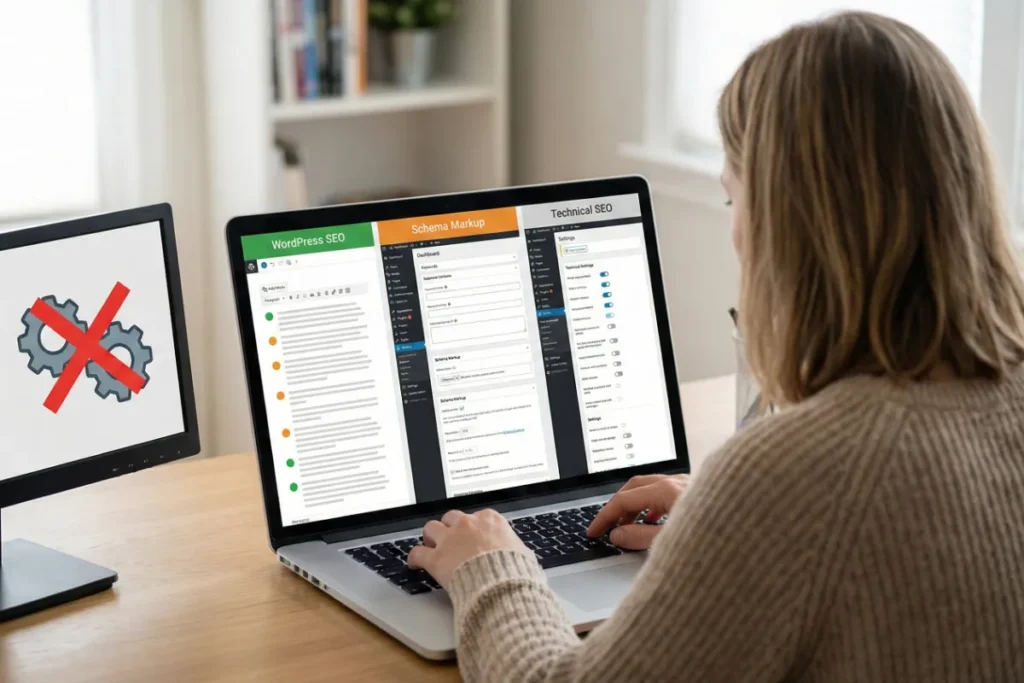
WordPress doesn’t optimize itself automatically, so you should use Rank Math for the best all-around feature set and Yoast SEO for the simplest writing and optimization workflow. And go for All-in-One SEO if you want more advanced technical control.
Here are more details about these three SEO plugins:
- Yoast SEO: This one is the most popular on-page SEO too, with over 5 million active installs. It gives you real-time feedback as you write. Its green lights mean you’re good, orange means improvement needed, and red means fix it now. Yoast also handles XML sitemaps and technical SEO automatically.
- All in One SEO: As a plugin, All in One SEO gives you more control than Yoast for advanced customization later. The setup wizard walks beginners through every step clearly. More importantly, it has Google Search Console and Analytics tracking built into the dashboard without extra plugins.
- Rank Math: It’s newer, but it’s packed with premium features for free. For instance, it lets you target multiple focus keywords per page right out of the box (Yoast charges for this feature). It also includes built-in schema markup, improved SEO score tracking, and automatic broken link detection.
Common Plugin Setup Mistakes
Why use just one plugin when you can use multiple to manage all of your work?
Whatever you pick, don’t install two SEO plugins at the same time. We are not kidding.
If you run Yoast and Rank Math together, it’ll create conflicts that’ll break your site’s SEO completely. That’s because multiple similar plugins fight over the same settings: duplicate meta tags, conflicting sitemaps, all kinds of problems (you do NOT want to debug that chaos, trust us).
So, we recommend installing one plugin, sticking with it, and actually completing the setup wizard instead of skipping through it. And please, don’t change 20 settings at once without tracking what happens to your rankings.
What Technical Setups Improve Rankings?
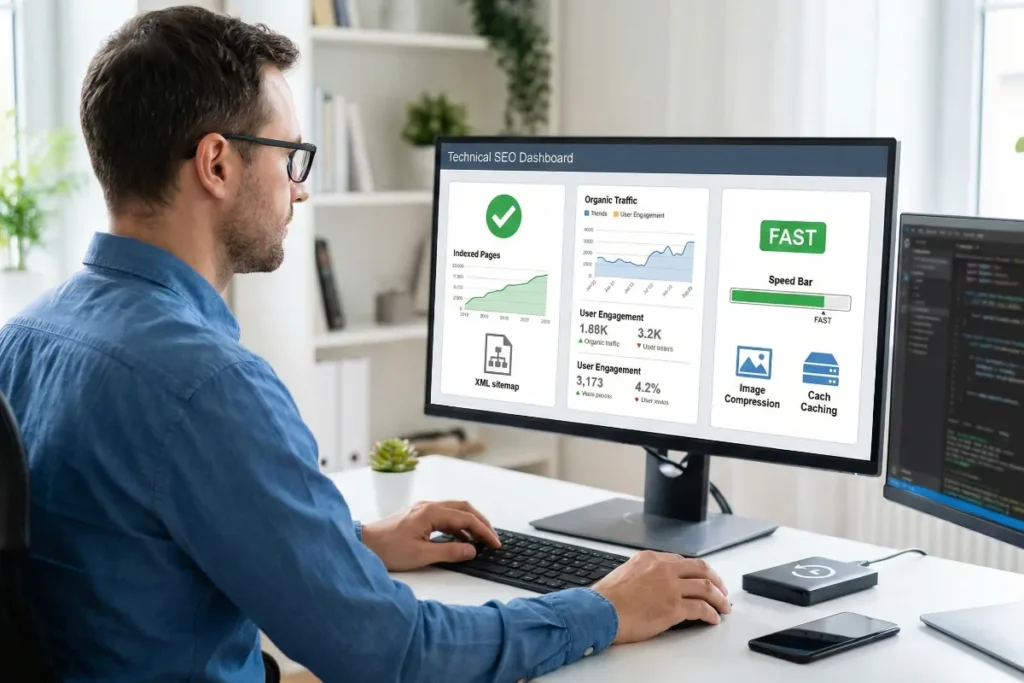
Five technical setups improve your rankings by telling Google where your pages are, how they’re performing, and whether your site is healthy. They’re XML Sitemap, Google Search Console, Google Analytics, Site speed, and Core Web Vitals.
Let’s be honest… They are far from glamorous fixes (who’s bragging about their XML sitemap at a party?), but search engines depend on them to index your site correctly and decide where you should rank.
And the best thing about them is that you set them up once, and they work automatically in the background. Most of the setups take less than 10 minutes each.
We’ll now dig deeper into these technical practices.
XML Sitemap Submission
Your XML sitemap is basically a directory of all your pages. It helps search engines find your content quickly instead of wandering around your site hoping to discover everything.
Now, most WordPress SEO plugins generate this sitemap automatically. For example, if you’re using any of the plugins we discussed earlier (Yoast, Rank Math, or AIOSEO), you already have a sitemap. Just look for it at yoursite.com/sitemap.xml.
Once you have the sitemap, submit it to Google Search Console. It’ll tell Google exactly where to look for which page and speed up the indexing process considerably.
Google Search Console Connection
Search Console shows you which pages Google has indexed and where they rank. It’s free and gives you data you can’t get anywhere else.
Specifically, you’ll see which search terms bring people to your site, how many clicks you’re getting, and what technical problems are blocking your pages.
Besides, when Google finds errors like broken links or indexing issues, Search Console tells you before those problems ruin your rankings.
Google Analytics Tracking
Did you know that Analytics can reveal which content actually drives organic traffic and which pages are failing? You need this data to figure out what’s working and what needs fixing.
To use it properly, set it up to monitor which pages get visitors from search engine results. This way, you’ll see what relevant keywords are bringing people in and how long they stay on each page.
Also, don’t forget to track your user behavior over time so you can adjust your content and SEO strategy based on real numbers.
Site Speed and Core Web Vitals
Google drops slow or unstable sites from top search results to protect the user experience. So if your pages take forever to load or fail Core Web Vitals tests, you’re losing rankings regardless of how good your content is.
If you didn’t know about Core Web Vitals, it measures things like how fast your page loads and how quickly users can interact with it. It also notices whether your web layout jumps around while the page loads.
To improve both speed and Core Web Vitals score, you should use a caching plugin, compress your images before uploading them, and minimize heavy scripts. Google prioritizes fast, stable sites in search results, especially on mobile, where most people browse today.
Bonus: Backup Before Making Changes
Imagine you’re updating a plugin or changing an SEO setting, and suddenly your site stops showing up on Google. It happens more often than you’d expect. That’s why you should always create a backup before making any big changes.
The thing is, a full WordPress backup protects you if something goes wrong. Particularly, plugin conflicts or a simple setting mistake can hurt your rankings fast. But with a backup, you can restore your site in minutes and get everything back to normal easily.
Pro tip: After a major update, run a quick crawl with a tool like Screaming Frog to catch broken pages before Google does.
What Content Optimizations Are Most Important?
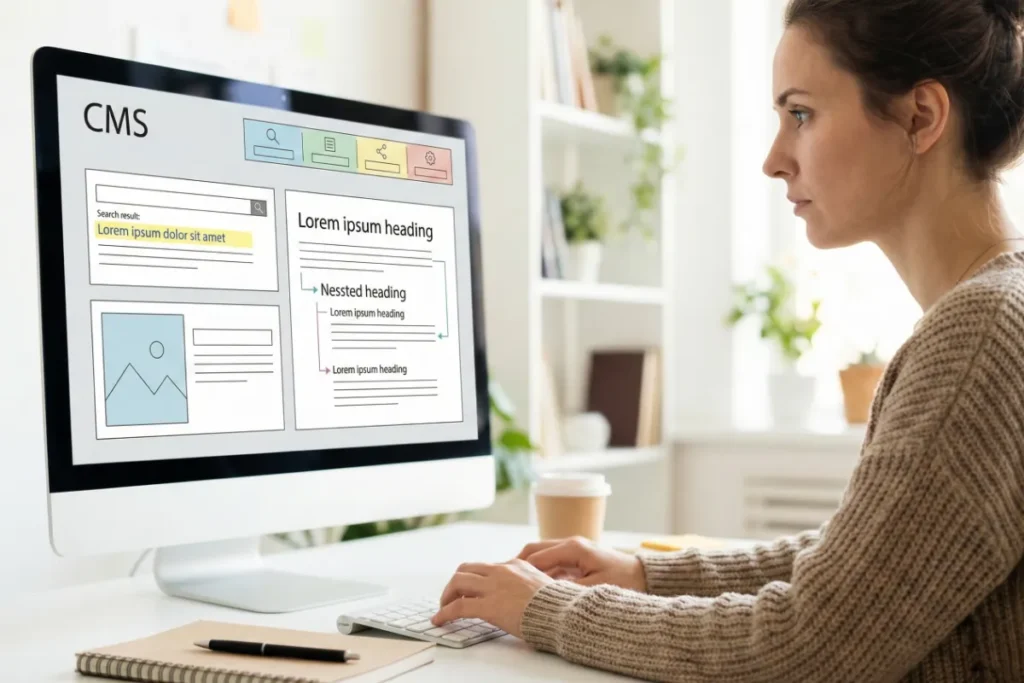
Content optimization starts with meta tags, images, and internal structure. These elements directly control how Google evaluates and ranks individual pages.
Review and optimize each of the following:
- Meta Titles and Descriptions: They appear below blue links in Google search results. Include your focus keyword naturally within 155 characters for descriptions. And keep titles under 60 characters so they don’t get cut off.
- Image Alt Text: Search engines can’t see images without alt text. So, it’s important to rename files with relevant keywords before uploading (like “wordpress-seo-settings.jpg” instead of “IMG_4829.jpg”). Plus, include descriptive alt text so Google understands your images and compresses them for faster loading.
- Heading Structure: Google reads your heading tags to understand page sections. We strongly advise using one H1 per page with your primary keyword. Then break your content into H2 sections for major topics and H3 for subtopics to help search engines crawl hierarchy.
- Internal Links: This one right here improves your search rankings without external help. All you have to do is connect your related blog posts so search engines discover all your pages (tip: use descriptive anchor text with relevant keywords instead of “click here”).
- Breadcrumbs: When you enable breadcrumbs, they show your page hierarchy for both users and search engines (Home > Blog > WordPress SEO). Most themes support them through plugins or built-in options. Google also displays breadcrumbs in search results below your title, which can improve click-through rates by giving extra context.
It’s amazing how a few simple fixes can change everything about your search visibility.
Build on These WordPress SEO Basics
While WordPress SEO basics give you a strong foundation, they’re just the beginning. Search engines take weeks or even months to notice changes and adjust your rankings accordingly.
In the meantime, you need to be patient. Give Google some time to recrawl your pages, reindex the content, and compare your site against competitors before moving you up in the search engine results page.
If you don’t want to fix the issues on your WordPress site yourself and are looking for some help, contact us today. We’ll get your SEO on track.